

Something looks broken
Work down this list. The first three fix most of it.
1. Reload the page. Genuinely. A single failed request can leave a panel empty or a button dead, and a reload re-fetches everything.
2. Are you offline? Check the badge in the reader toolbar. Plenty works without a connection, but plenty does not — see "Offline isn't working".
3. Is it a private or restricted browser window? Offline downloads and saved settings need ordinary site storage. In a private window the app will tell you what it cannot do. Use a normal window.
4. Try the other device. If it is fine on your phone and broken on your laptop, that is a browser or extension problem, and it tells us a lot. Ad blockers and strict privacy extensions are the usual culprits.
5. Check the address. If the page says it does not exist, see "When a page says it doesn't exist" — the usual cause is being signed in as a different account.
6. Update your browser. We support current versions of Chrome, Safari, Edge and Firefox. A browser several years old will show real layout faults.
When it is content rather than the app
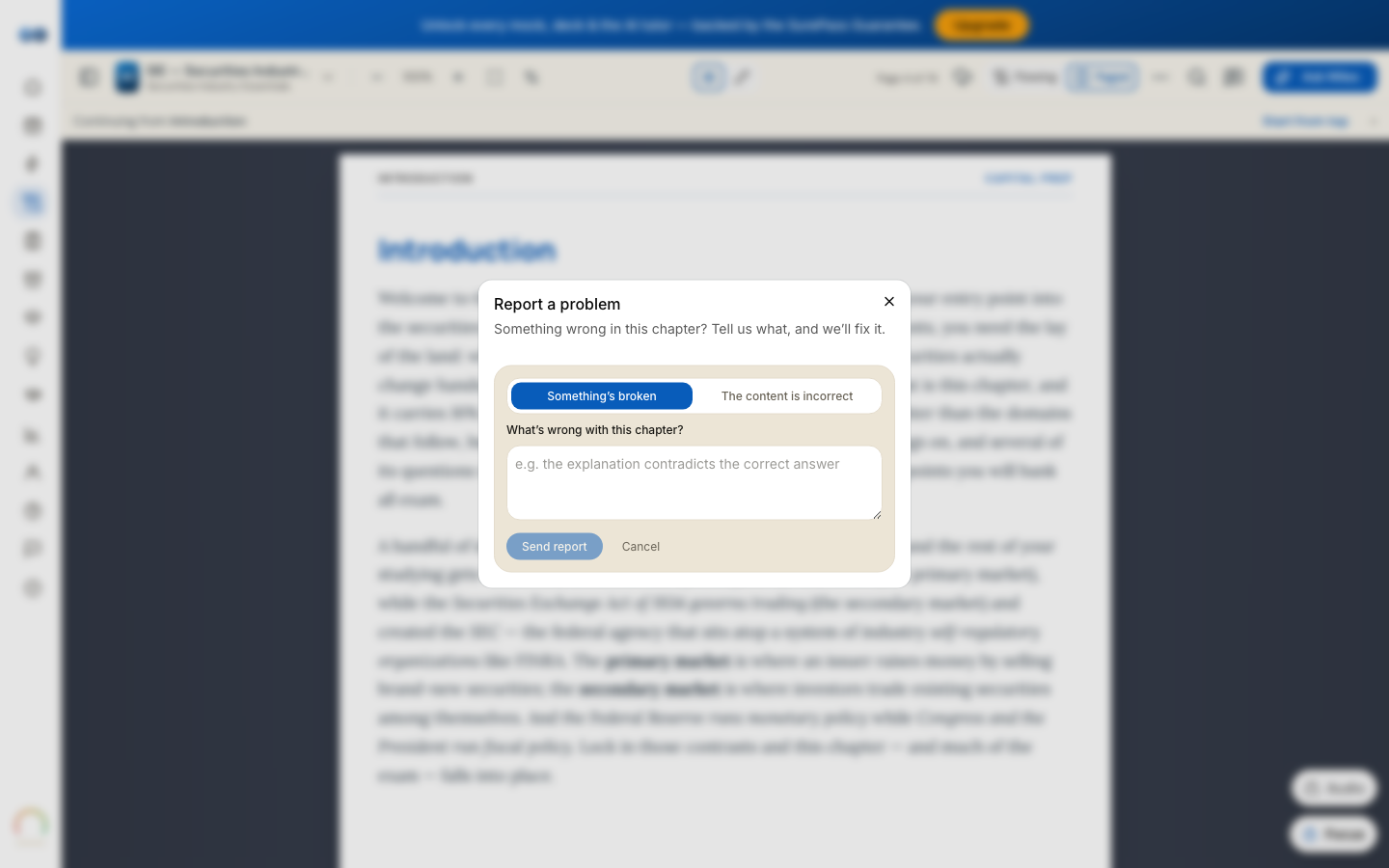
A wrong answer key or a contradictory explanation is not a bug in this sense — use Report a problem on the item itself, which sends us the exact question. See "Reporting a wrong question or explanation".
Telling us
Email hello@capitalprep.com with:
- what you tapped, what you expected, and what happened;
- the address in your browser's bar, in full;
- a screenshot — the single most useful thing you can send;
- your device and browser.
That set is usually enough for us to reproduce it in one go. We aim to reply within a few hours, and anything that stops you studying goes to the front of the queue.
More in Troubleshooting
Didn’t answer it?
hello@capitalprep.com · we aim to reply within a few hours.