

Adding or switching your exam
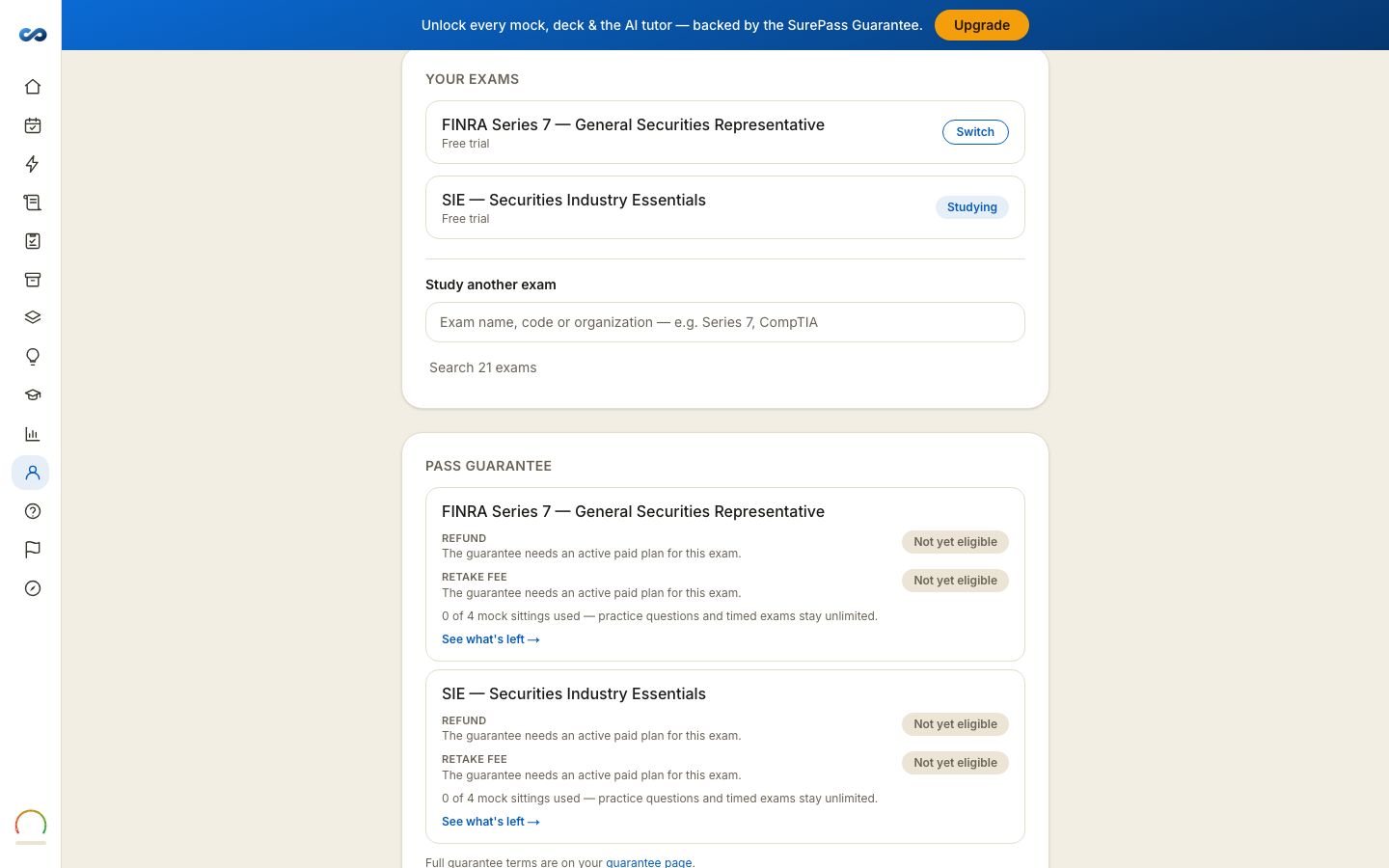
Go to Account → Your exams.
Switching
Press Switch on the exam you want. The badge moves to it there and then — you stay on the Account page, nothing reloads, and you do not sign in again. The exam you left keeps everything exactly as it was: progress, highlights, notes, flashcard schedule, readiness meter and Game Plan.
The exam you are currently studying wears a Studying pill.
Adding another
Under Study another exam, search by exam name, code or organization — "Series 7", "CompTIA", "CCMA". We do not list the whole catalog; type two or three characters and the matches appear, each with its full name and the body that awards it.
- See plans on an exam you do not hold opens its pass options; buying one adds it and drops you straight into its study guide.
- Open on an exam you already hold makes it current.
- Arrow keys move through the results, Enter picks one, Escape clears the box.
Things worth knowing
- Each exam has its own progress and its own readiness meter. They never mix.
- A pass buys one exam. Adding an exam means a pass for that exam, not access from a pass you bought for something else.
- New free trials are closed. If you already hold a trial on an exam it stays exactly as it is; an exam you do not hold opens its pass options.
- Sitting more than one? The bundle builder prices them together — see "Bundles — buying more than one exam".
More in Account, billing and privacy
Didn’t answer it?
hello@capitalprep.com · we aim to reply within a few hours.