

Reading your study guide (The Pass Guide)
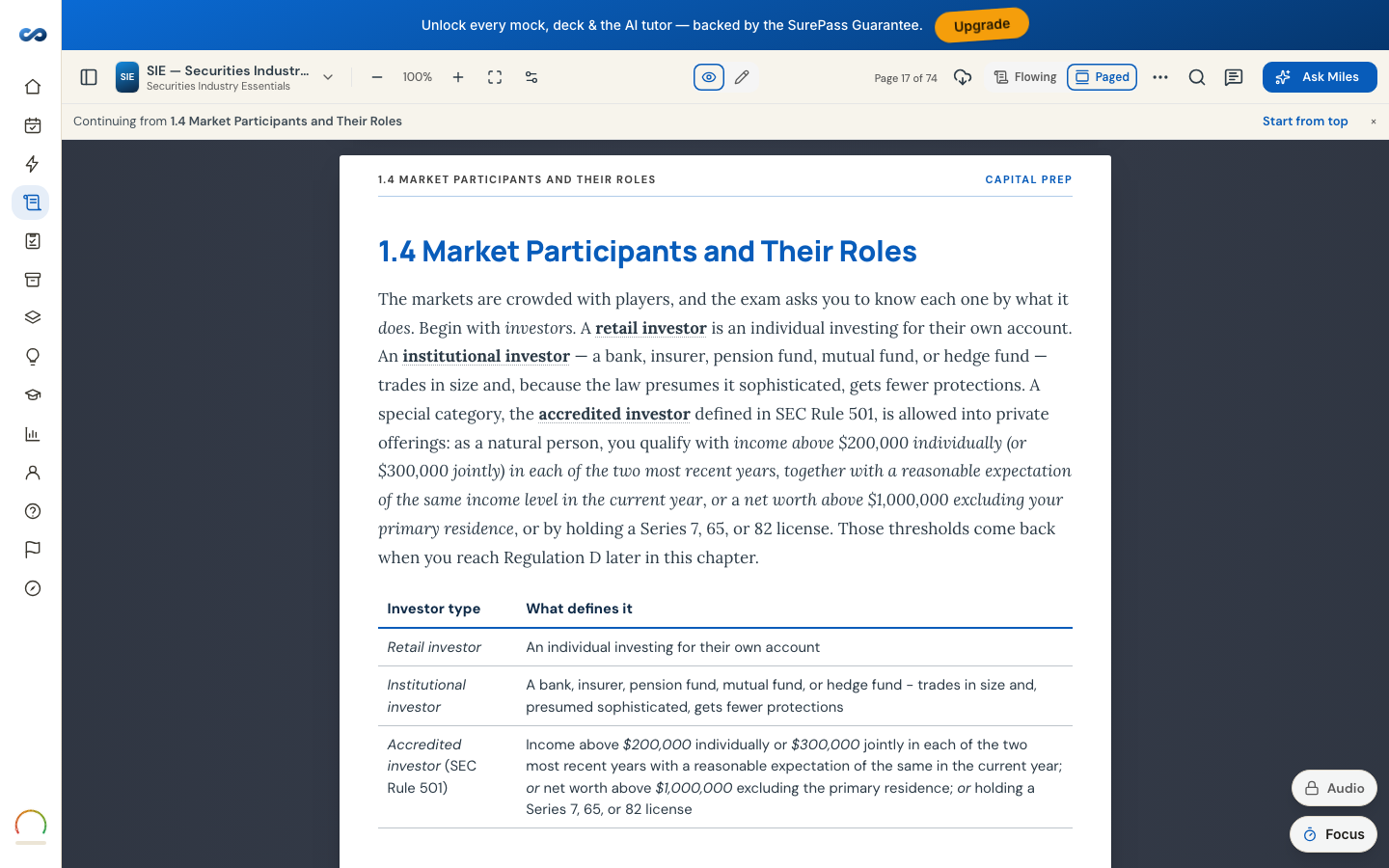
The sales page and your plan call the study guide The Pass Guide; in the app it is Study Guide in the side rail.
The study guide is the whole textbook for your exam, and it is open in full on every pass — every chapter, on every device. If you already hold a trial, it is open in full on that too while the trial's clock runs.
Open it from your dashboard or from Study Guide in the side rail. It opens at the chapter you were last reading.
The toolbar stays with you
Moving between chapters swaps the page, not the frame, so Contents, Search, Comments and Miles stay exactly where you left them.
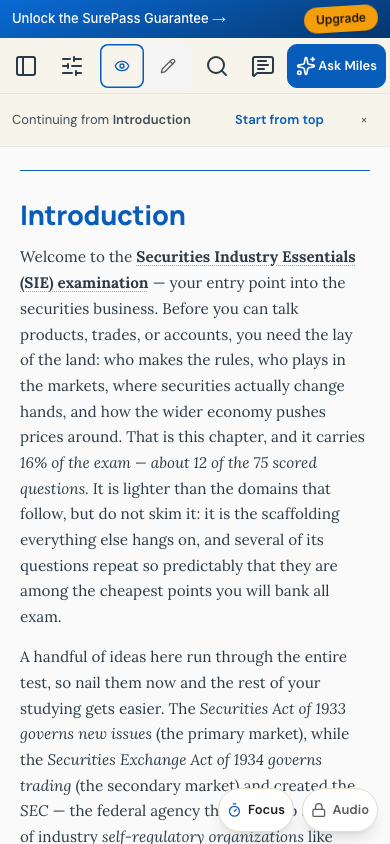
- Left — Contents, then, if you have more than one guide, the guide switcher (a books icon; the cover and title on a wide screen). Reading tools replaces the spread-out controls on smaller screens.
- Center — the View / Annotate pill. See "Highlighting, notes and flashcards from the page".
- Right — the offline badge, the page counter, Read offline, the Flowing / Paged switch, More, then Search, Comments and Ask Miles.
Getting back to Study home. With one guide, the slot beside Contents is a home icon that takes you back; on a wide laptop the app's side rail is on screen instead — use Home there. With several guides, the switcher's first row is Back to study home. On a phone that row lives inside Reading tools.
Moving through the book
Scroll. In Flowing view, when you reach the foot of a chapter a marker names what is next — Continue to Chapter 3 — … — and scrolling on past it opens that chapter in place. Pull deliberately upward at the very top and the previous chapter opens at its end. In Flowing view a quiet ← Chapter 5 link sits at the top of every chapter if you would rather just click.
Nothing fires by accident: the edges stay disarmed until you have genuinely scrolled into the chapter, and momentum alone never turns a page.
Picking up where you stopped
Reopening the book shows a Continuing from … row with your last position and a Start from top button. It clears itself after a few seconds.
On a phone
The toolbar tucks away as you scroll down and comes straight back the moment you scroll up, so the text gets the screen. Your place, your highlights and your notes live in your study portal, so they follow you from laptop to phone.
More in The study guide
Didn’t answer it?
hello@capitalprep.com · we aim to reply within a few hours.