

Contents, and searching the book
Contents
Contents is the first button on the toolbar. It opens a panel with two tabs:
- Sections — the table of contents. Chapters are listed in order and only the chapter you are reading expands to show its sections, so the list stays short. Longer books, such as the CompTIA titles, group their chapters under domain headings like "Domain 1 — Networking Concepts" and number each row.
- Pages — a preview of every page, as a Grid or a List. Tap one to jump there. This tab is for Paged reading.
Contents never opens by itself, and it remembers which tab you were on. On a laptop it sits beside the text; on a phone it covers the screen and closes itself when you pick something.
Search
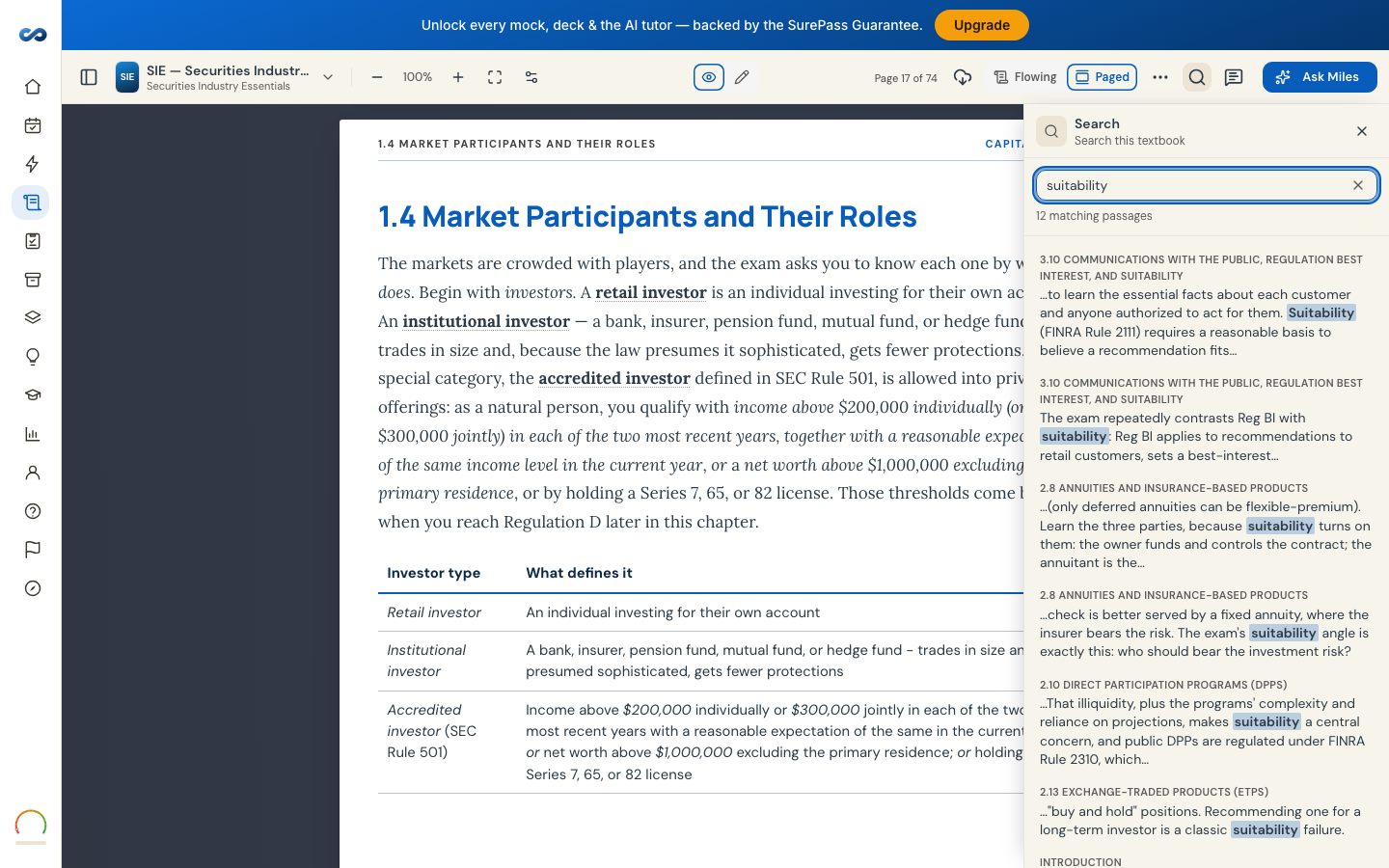
Search is its own panel, on the right of the toolbar — not inside Contents. Its subtitle reads "Search this textbook".
Type into Search the textbook… — the box takes focus straight away, so on a phone the keyboard is already up. Results come back grouped under their section titles with your words highlighted in each, so you can tell the right match from the near one before you jump.
- Search covers the whole book for your exam, not just the chapter on screen, and it matches section titles as well as body text.
- Results appear as you type: the last word you have typed is matched as a beginning-of-word, so "settle" finds "settlement".
- Accents are ignored, and words next to each other in your query rank higher.
- The panel tells you how many matching passages it found, offers Show 50 more when there are many, and says No matches when there are none.
- Your query survives following a result into another chapter.
A tip: search finds words, Miles finds meaning. If you are looking for a term, search. If you are trying to understand something, use Ask Miles — see "What Ask Miles is".
More in The study guide
Didn’t answer it?
hello@capitalprep.com · we aim to reply within a few hours.