

Highlighting, notes and flashcards from the page
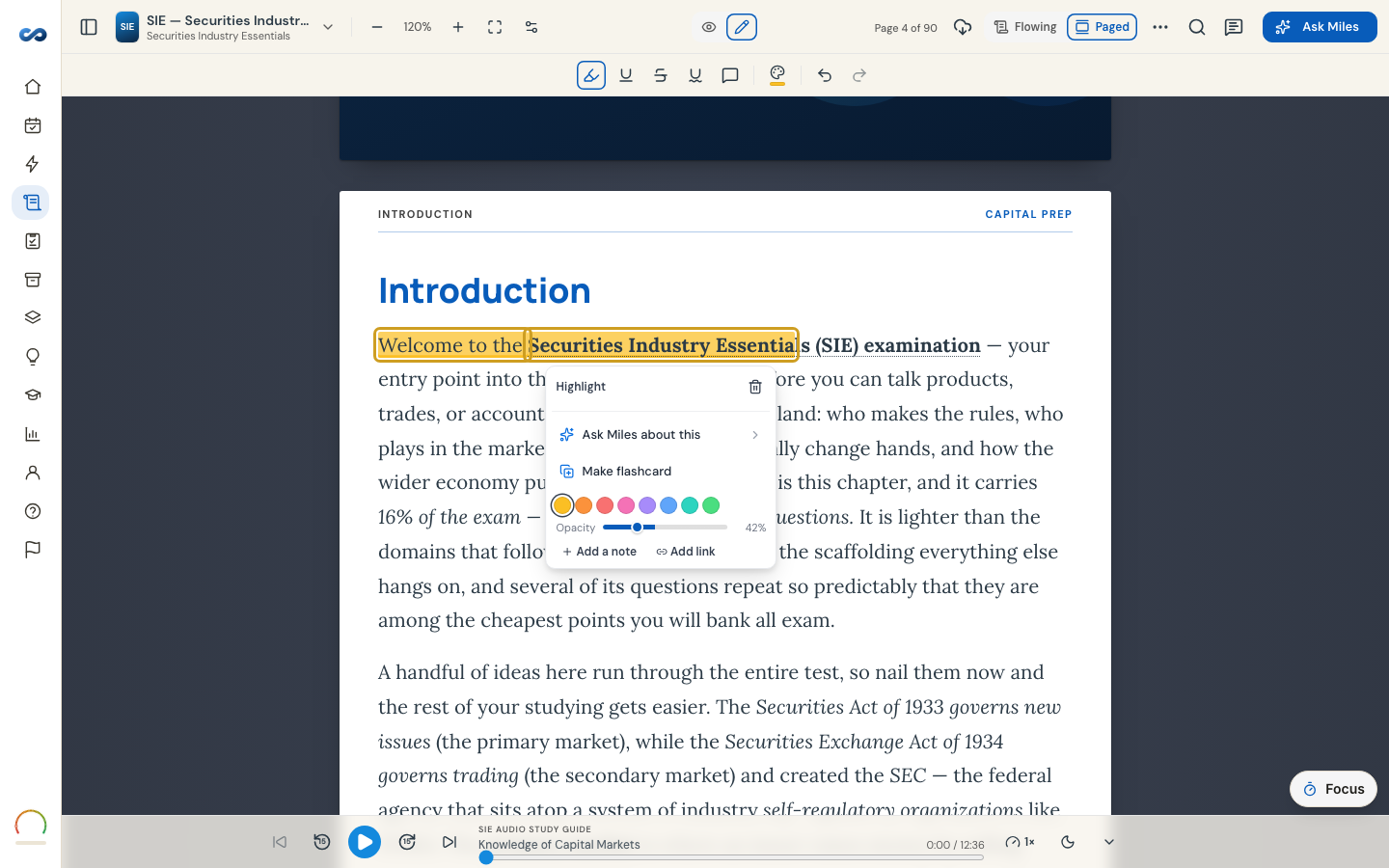
Turn on Annotate
The pill in the middle of the toolbar has two settings: View (the eye) and Annotate (the pencil). In View, selecting text does nothing — that keeps ordinary reading and scrolling clean. Switch to Annotate and selecting text brings up the tools.
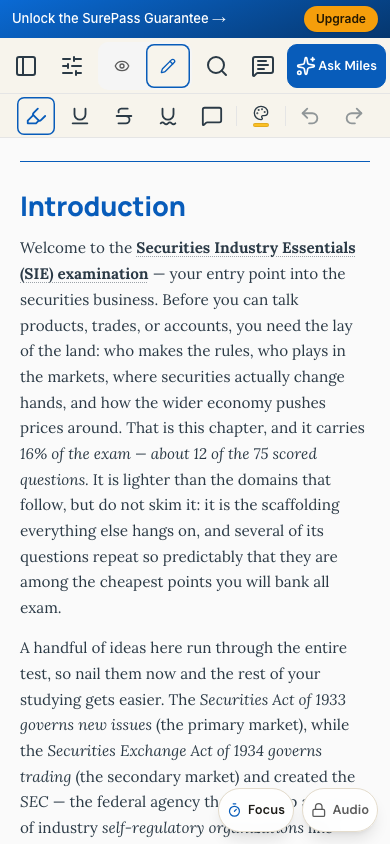
On a phone or tablet, press and hold a word for a moment. Selection snaps to whole words, and a small magnifier floats above your fingertip so you can see the words your finger is covering. Drag either way to extend, and let go to finish. Your phone's own "Copy / Look Up" bar stays out of the way inside the book.
The tools
Four ways to mark: Highlight, Underline, Strikethrough and Squiggly underline. Eight colors, and an Opacity slider to soften a color that is too strong over the text.
Two combined actions on the selection menu: Highlight + note, and Highlight + link, where the link can be a page in the book or a web address.
Undo and Redo are on the toolbar, and the usual keyboard shortcuts work in both modes.
Study actions
Under Study actions on the same menu:
- Ask Miles about this — opens Miles with the passage already in hand, and offers Explain this, Quiz me on this, Why is this on the exam? and Simplify it (ELI5). This works on a trial you already hold too; it spends one of your daily questions.
- Make flashcard — opens Make a flashcard with Back (the answer) pre-filled from what you highlighted. Write the Front (your prompt) yourself, then add it. Open on every pass, and on a trial you already hold while its clock runs; when the trial closes it shows a lock and explains what unlocks it.
Changing a mark afterwards
Every mark opens its own card the moment you make it, and again whenever you tap it: change the color or opacity, add another note, edit or remove a link, or delete it. Where marks overlap, the card gives you a tab per mark.
Finding them again
The Comments panel lists everything you have marked in the book — see "Finding your highlights and notes again".
On a phone
More in The study guide
Didn’t answer it?
hello@capitalprep.com · we aim to reply within a few hours.