

Paged and Flowing, and other display settings
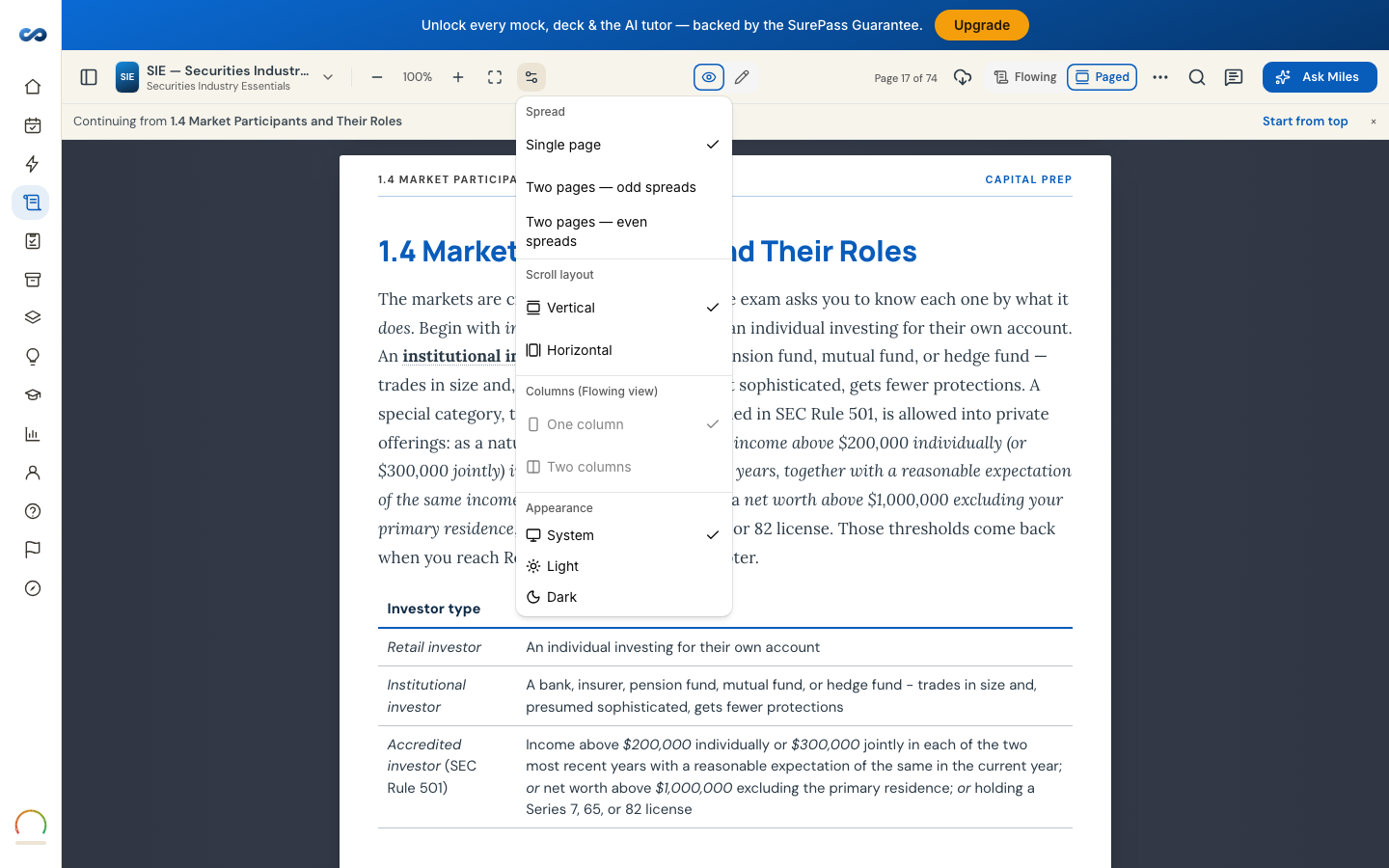
There are two ways to read, chosen with the Flowing / Paged switch. Your choice is remembered per exam.
- Paged — the text is laid out on page cards, like a printed book, with a Page X of Y counter. This is what the Pages tab in Contents navigates.
- Flowing — one continuous column, like a web page. Scrolling past the end of a chapter opens the next one.
Phones are always Flowing. The switch, and the page-layout settings below it, are laptop and tablet controls — they are not hidden away on a phone, they simply do not apply. That is deliberate: page cards on a 390-pixel screen fit about a paragraph each.
Page settings
The gear menu holds the layout options:
- Spread — Single page, or two pages side by side (odd or even spreads).
- Scroll layout — Vertical or Horizontal.
- Columns (Flowing view) — One column or two, on wide screens.
- Appearance — Sand & Sky, Night or Basic.
Choosing a Spread or Scroll layout while you are in Flowing switches you to Paged, and the menu says so before you pick.
Text size
The − 100% + cluster resizes the text between 85% and 160%, and the percentage itself is a button that resets to 100%. It reflows the words rather than magnifying a picture of them, so your highlights stay attached to the right sentences. On a phone or tablet it is the Text size row in Reading tools.
Fullscreen
Fullscreen hides everything but the book, and opens a slim rail of tools you can show or hide. It is not offered on iPhone, where Safari has no fullscreen for web pages; iPad and laptops have it.
Note that fullscreen puts you in Annotate mode and puts you back as you were when you leave.
On a phone all of the above lives in the Reading tools menu next to Contents.
More in The study guide
Didn’t answer it?
hello@capitalprep.com · we aim to reply within a few hours.