

Studying offline, and adding Capital Prep to your home screen
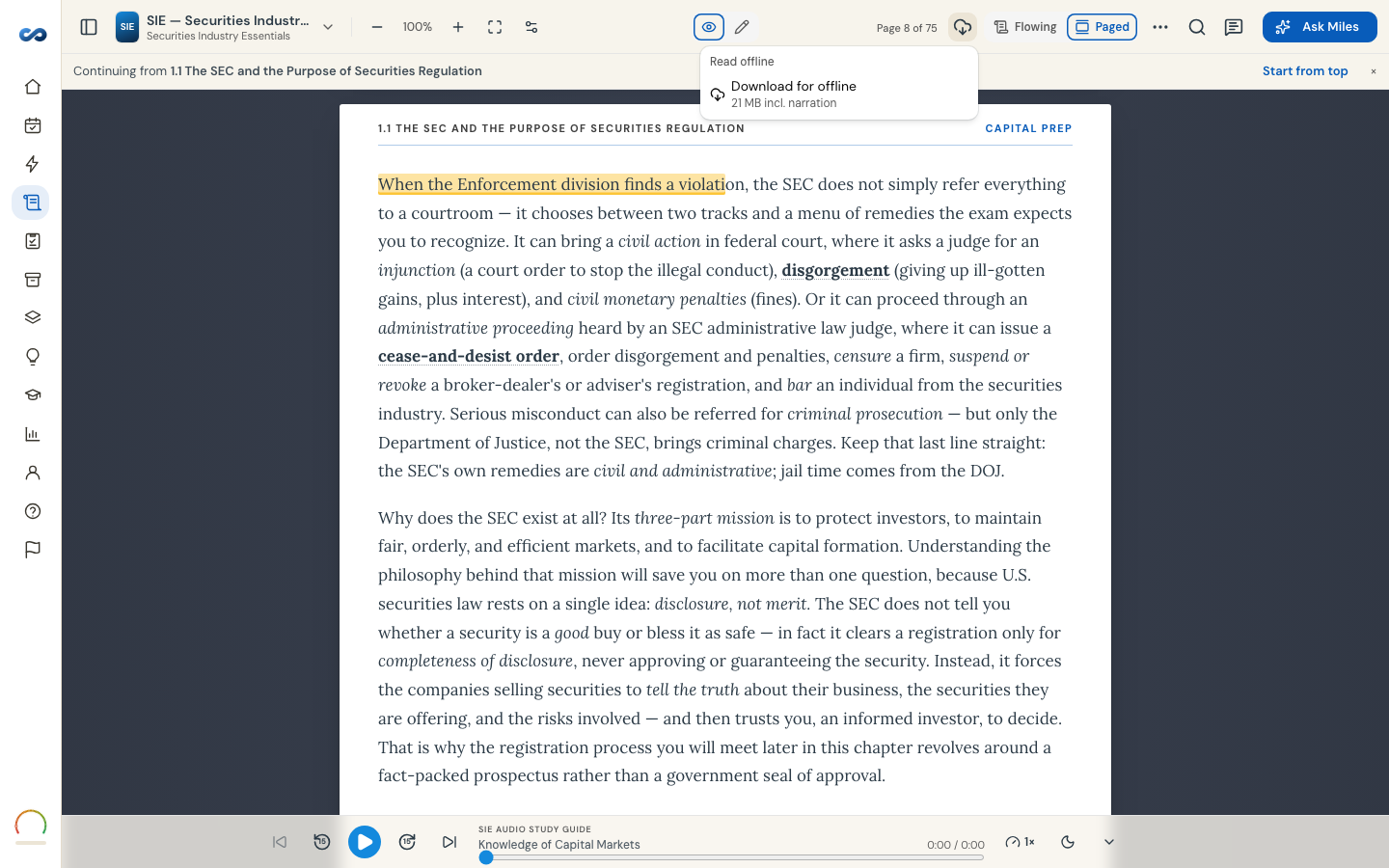
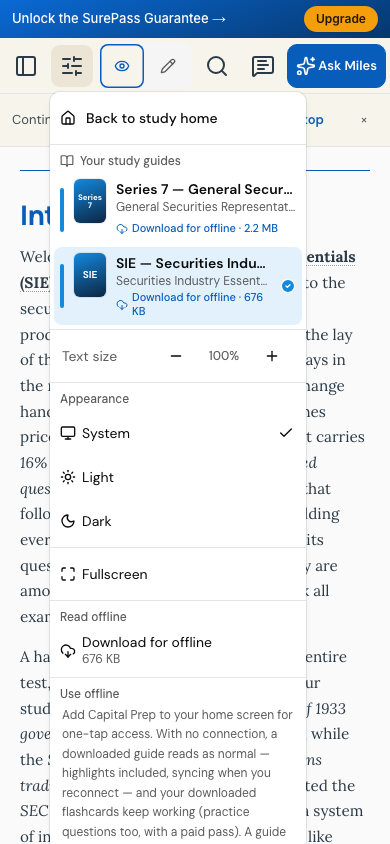
On a laptop, the cloud icon in the toolbar is Read offline. On a phone or tablet the same rows are at the foot of Reading tools.
Download the guide
Nothing downloads on its own. The row shows the size first — including narration where you have it — and waits for you.
Choose Download for offline and it counts through the chapters ("Downloading… 4 of 12"), with Cancel download beside it. When it finishes the row reads Available offline with the size it took, and offers Remove download.
A downloaded guide reads exactly as normal with no connection, highlights and notes included — they queue and sync the moment you are back online.
A guide you have not downloaded needs a connection. Reading a chapter does not quietly cache it.
Downloads are per device, and they come with a pass. On a trial you already hold the download row shows a lock — a saved copy would outlast the trial — and opens the plans when you press it.
The rest of your studying
With a pass, flashcards download themselves the first time you open Flashcards while online, and practice questions do the same. So open Flashcards and Tests once on wi-fi before a flight.
Ask Miles needs a connection, always. Its answers are generated, so there is nothing to store.
Add it to your home screen
The same menu has a Use offline section with Install app where your browser supports it.
- iPhone / iPad (Safari): tap Share, then Add to Home Screen. You sign in once inside it.
- Android / desktop: choose Install app (or Add to Home Screen).
It opens full-screen from your home screen and keeps you signed in.
The badge in the toolbar
When you are offline, or when changes are still syncing, a small badge says so. If it ever reads Couldn't save — retrying, keep the tab open until it clears.
If something is not working, see "Offline isn't working".
On a phone
More in The study guide
Didn’t answer it?
hello@capitalprep.com · we aim to reply within a few hours.