

Your dashboard
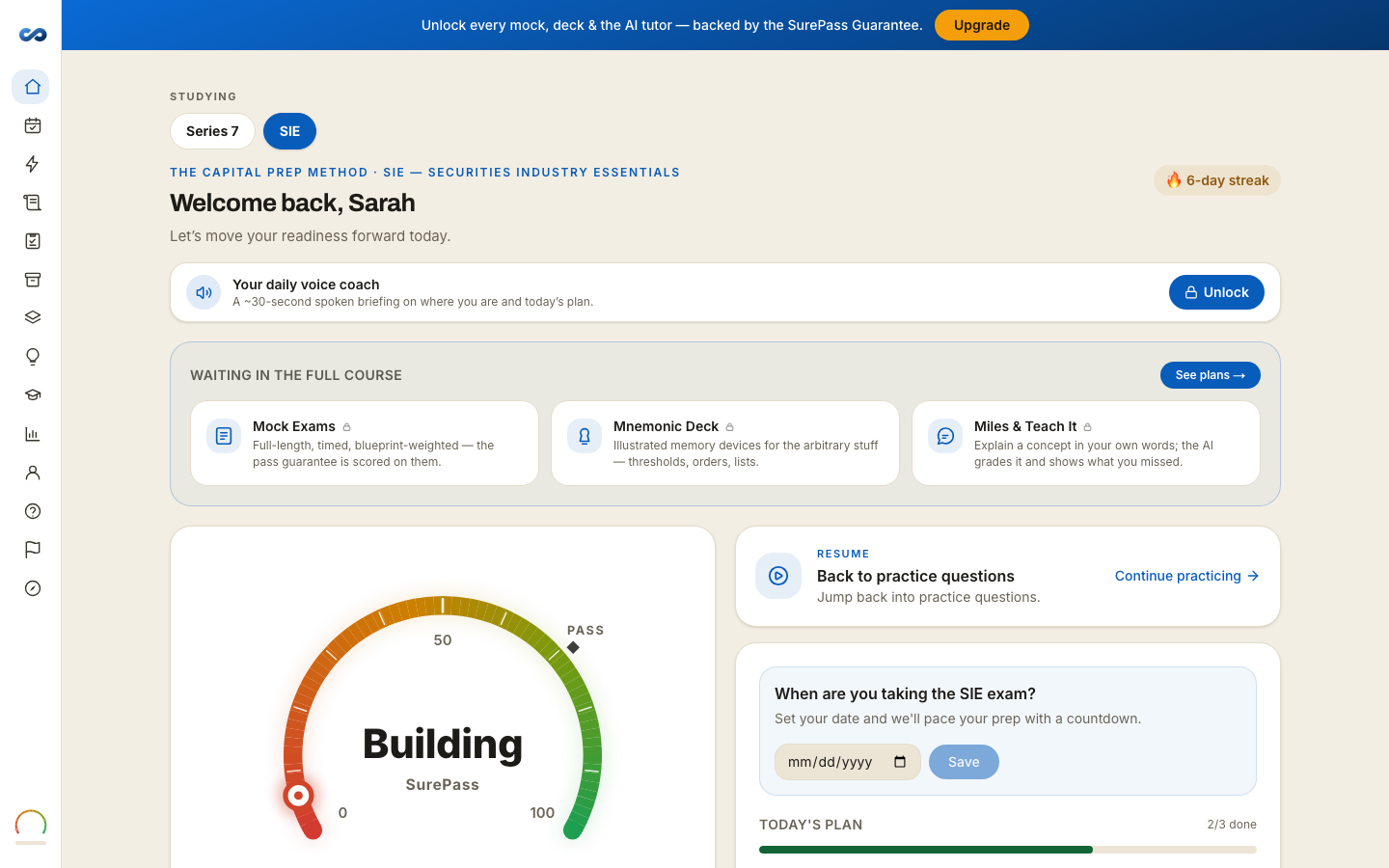
Home for the exam you are studying. Everything here is about one exam at a time — switch exams and the whole page changes with it.
What is on it
- Your Pass Path — the first card under the greeting: seven steps, from your starting-point check to a mock exam at your exam's ready score. A bar shows how much of the path is done, and the card says what comes next and lists every step (on a phone, behind See all steps). It counts the steps you have finished — it is not your readiness score, which the meter below measures separately — and a finished step is never taken back. Now and then a short note appears under it for a real milestone: a first session done, a study streak, hard questions answered right, or your weakest topic improving. It comes with the plans that include practice questions and mock exams — Standard and SurePass.
- Your readiness meter — Building, Getting close, or Ready to sit, with the one action worth taking next. See "The readiness meter (your SurePass Score)". The meter is the SurePass Score, which comes with SurePass; on Starter and Standard its card shows a lock.
- Your exam date — a countdown once it is set, or an invitation to set one. See "Your Game Plan, and setting your exam date".
- What is due today — the cards and questions your plan has queued.
- Today's goals — a daily target each for practice questions, flashcards and reading, with an Adjust button on every row.
- Your study streak, and the shortcuts into the guide, practice and flashcards.
The study rail
Down the side (and behind a menu on a phone) sits everything for this exam: Game Plan, Cram Mode, Study Guide, Tests (practice questions and mock exams), Missed Questions, Flashcards, Mnemonics, Teach It and Performance. Your readiness status is pinned at the bottom of it. On Starter and Standard that spot shows the SurePass Score with a lock.
The one number to trust
Readiness is a status, not a percentage, and it needs evidence before it says anything at all — roughly 25 graded answers spread across most of the exam's domains. Until then it shows you how far off unlocking it you are, which is a more honest thing to look at than a made-up number.
If it looks empty
A brand-new account has nothing to show yet, so the dashboard leads with getting you started rather than with statistics. Answer a session's worth of questions and the page fills in.
On a phone
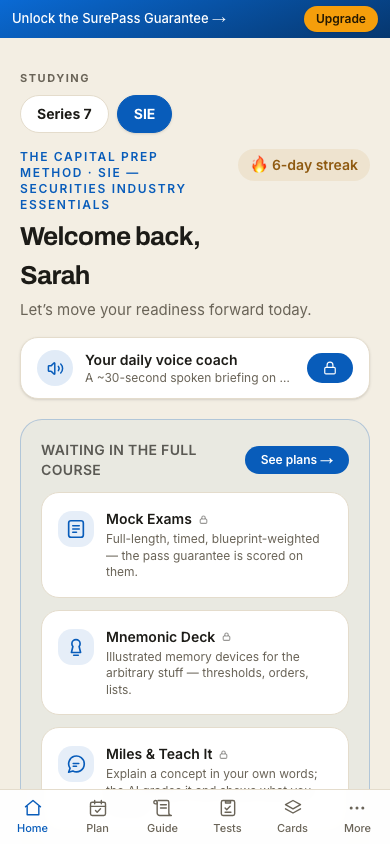
The rail becomes a bar along the bottom — Home, Plan, Guide, Tests, Cards — and a More sheet with everything else. Everything is reachable; nothing is left out.
More in Getting started
Didn’t answer it?
hello@capitalprep.com · we aim to reply within a few hours.