

Signing in
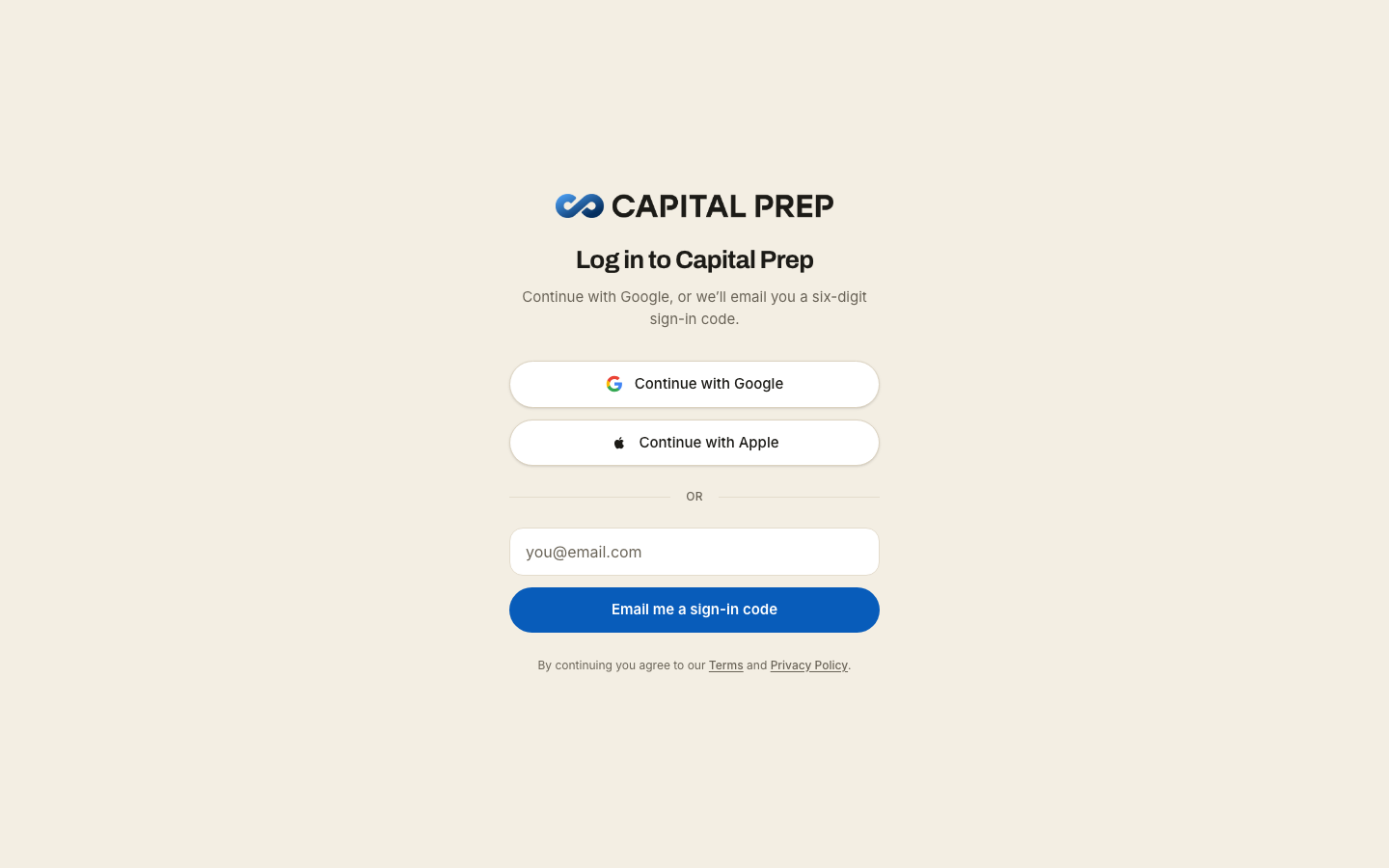
Capital Prep has no passwords. There is nothing to forget and nothing to reset.
Three ways in, all on the sign-in page.
A button, and a six-digit code
Type your email address and choose Continue with email. The email we send carries both: a Sign me in button at the top, and a six-digit code underneath it. Use whichever suits you — there is nothing to switch on, and the code is always there.
- The button signs you in on the device that asked for the email. Tap it and you are straight in. Open the email somewhere else — your phone when you asked on your laptop, or a mail app that opens links in its own browser — and the button takes you to a screen where you enter the code instead. That is deliberate: it is what stops corporate mail scanners, which open every link in a message before you ever see it, from using up your sign-in.
- The code works anywhere. Any device, any browser, forwarded or not.
- Both last 15 minutes and work once. Ask for another whenever you need one — Resend is on the same screen, and the newest email is the one that works.
- You can paste the code. "123 456" and "123-456" both work.
- Use the same email address every time. A different address is a different account, with different access.
- If it does not arrive, see "My sign-in code didn't arrive".
Continue with Google, or Continue with Apple
One tap, no code. Both are live. Use whichever carries the address your purchase is under — signing in with a different identity gives you a different account.
If a provider sign-in does not complete you land on a page that says so, with a reference code and a way back. The emailed code always works, so that is the fallback.
If you land on "Is this the right account?"
That screen appears when a sign-in created a new, empty account — usually because the Google address was not the one you expected. It names the address you are signed in as. Sign out & use a different email if it is wrong; Continue if it is right.
Staying signed in
You stay signed in on a device until you sign out — nothing signs you out on a timer. Adding Capital Prep to your home screen keeps you signed in there too; see "Studying offline, and adding Capital Prep to your home screen".
Signing out clears that device, including any guides you downloaded to it. Anything you wrote offline and had not synced is kept for when you come back.
More in Getting started
Didn’t answer it?
hello@capitalprep.com · we aim to reply within a few hours.